


 All Articles
How to Create and Manage a Support Ticket
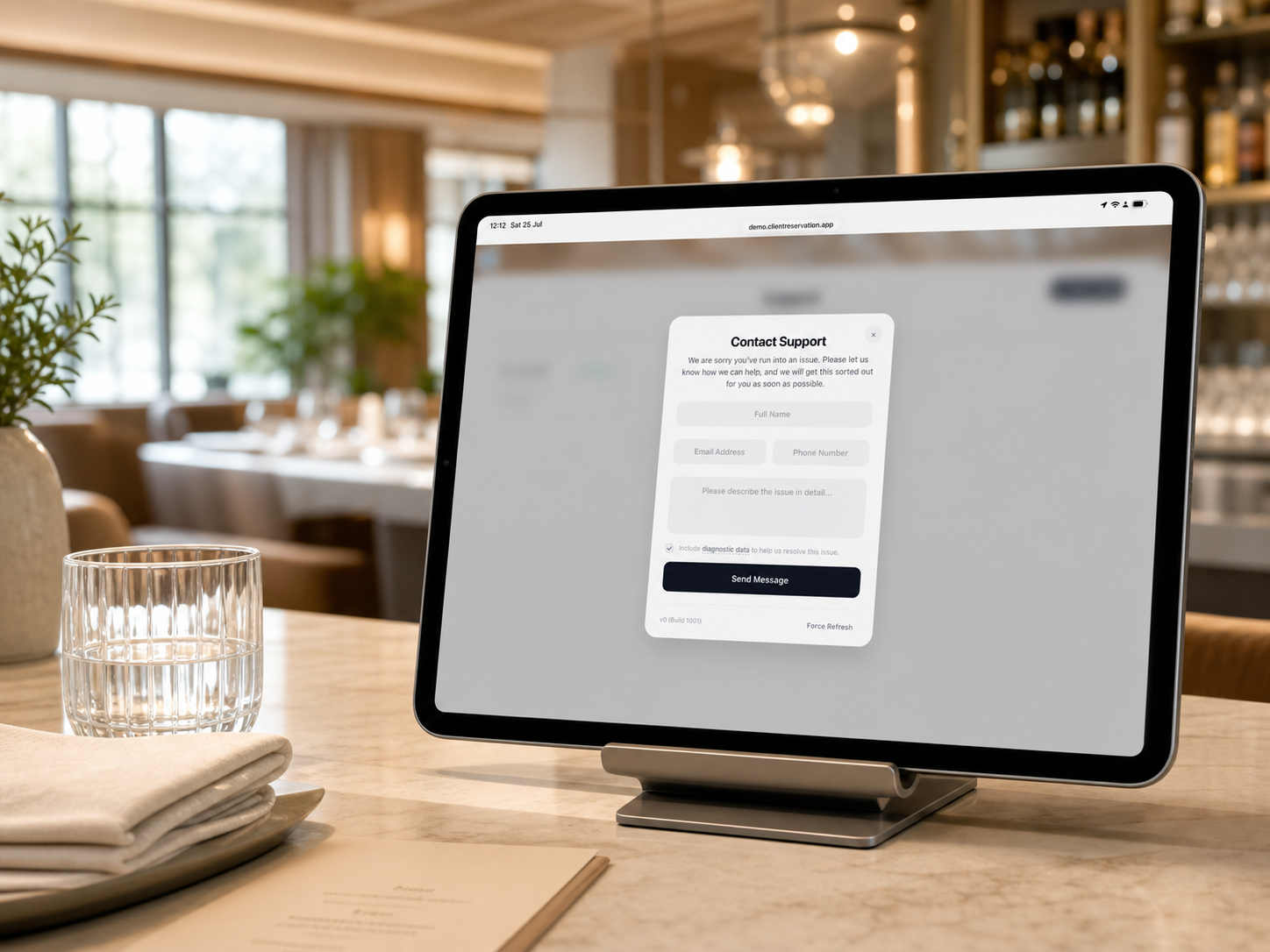
The Support page allows you to contact the Client Reservation support team, track the progress of your request and continue the conversation from within the app.
1. Create a support ticket
- From the Home screen, select Support.
- Select New Ticket in the top-right corner. If you have not submitted a ticket before, you can also select Create a Ticket in the centre of the page.
- Enter your full name.
- Enter a valid email address. This is required so that you can receive confirmation and the support team can contact you.
- Enter your phone number if you would also like to provide one. This field is optional.
- In the message box, describe the issue in as much useful detail as possible. Include what you were trying to do, what happened and any error message you saw.
- Leave Include diagnostic data selected if possible. This securely provides technical information such as your app version, Business ID, browser and current page, helping the support team investigate more quickly. Select diagnostic data to review the information that will be included.
- Select Send Message. Keep the page open while the ticket is being submitted.
- When the Message Sent confirmation appears, make a note of your ticket reference number. A confirmation will also be sent to the email address you provided.
- Select Done to close the confirmation.
2. View a ticket and check its status
- Open Home > Support.
- Find your ticket in the list. Tickets are shown with their reference number, submission date, original message and current status. The newest tickets appear first.
-
Check the status displayed on the ticket:
- Open: Your request has been received and is awaiting review.
- In Progress: The support team is currently investigating or handling your request.
- Closed or Resolved: The request has been completed and the ticket is no longer active.
- Select the ticket to open Ticket Details.
- Review the ticket reference, submission date and original message. Replies from you and the support team appear in the Conversation Thread, with the sender and time clearly identified.
3. Respond to a support ticket
- Open Home > Support and select the ticket you want to respond to.
- Read the latest messages in the Conversation Thread.
- Enter your response in the Write a Reply box.
- Select Send Message.
- Wait for the reply to appear in the conversation before closing the ticket window.
You can continue replying while a ticket is Open or In Progress. Once it has been closed or resolved, replies are disabled. If the same issue returns after a ticket has been resolved, create a new support ticket and include the previous reference number where helpful.