


 All Articles
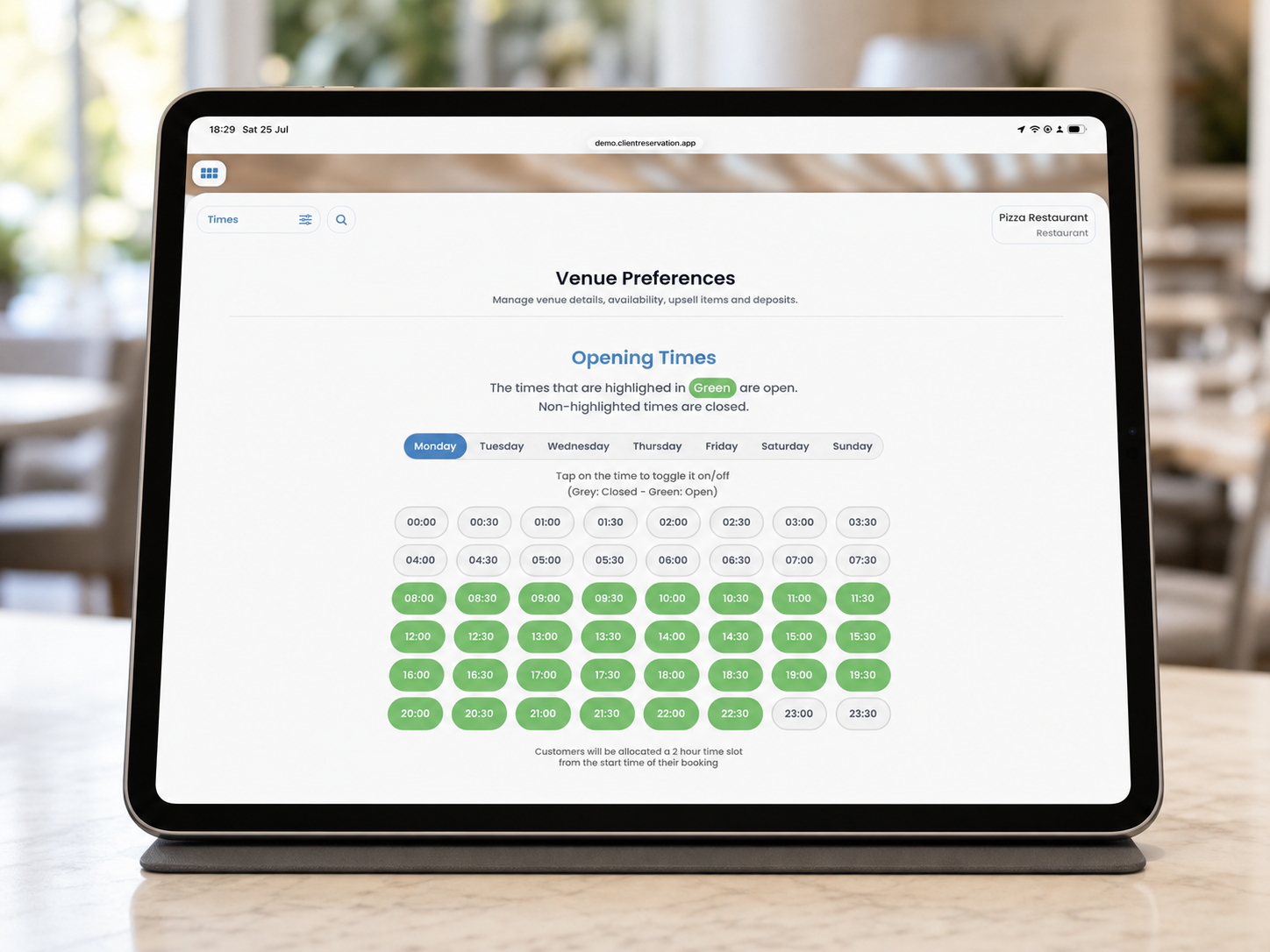
How to Edit a Venue’s Opening Times
Opening Times determine which booking start times customers can select on each day of the week. They are configured separately for each restaurant venue and saved automatically.
Beach venues do not use Opening Times because beach bookings cover the full duration of the day.
1. Open the Opening Times settings
- From the Home screen, select Venue Preferences.
- Check the venue name and type displayed in the selector at the top-right of the page.
- Select the preferences menu at the top-left. This may currently display Venue Details or the name of another section.
- Select Opening Times.
- The Opening Times page will open with Monday selected automatically.
2. Change the selected venue
- Select the current venue at the top-right of the page.
- Find the venue you want to edit in the Choose a venue menu.
- Select Restaurant beneath the venue’s name. If a location contains linked beach and restaurant areas, make sure you select Restaurant. Opening Times are not required for the beach area.
- Check that the correct venue name and Restaurant type now appear in the selector.
- The saved opening times for that restaurant will load automatically.
Only active venues that you have permission to edit will appear in the venue selector.
3. Set the opening times for a day
- Select the day you want to edit: Monday, Tuesday, Wednesday, Thursday, Friday, Saturday or Sunday.
- Review the available time buttons. Times are displayed in 30-minute intervals from 00:00 to 23:30.
- Select a time to make it available as a booking start time. It will turn green.
- Select a green time again to remove it from the available booking times. It will return to grey.
- Continue until every required booking start time for that day is highlighted green.
- Select the next day and repeat the process.
Each change is saved automatically as soon as you select or deselect a time. There is no separate Save button.
4. Understanding the time colours
- Green: Customers can select this time when making a booking.
- Grey: This time is unavailable for online bookings.
Selecting one time does not automatically select the times before or after it. For example, if bookings should be available at 18:00, 18:30 and 19:00, you must select all three times individually.
5. Booking duration
Customers are allocated a two-hour time slot beginning at their selected booking time. For example, a booking starting at 18:30 is allocated until 20:30.
The green buttons represent the times at which a booking may begin—not the venue’s full operating period.
6. Closing a venue for a particular weekday
To prevent customers from choosing any booking times on a specific weekday:
- Select the required day.
- Select each green time to turn it grey.
- Confirm that no times remain highlighted green for that day.
For closures that apply only to particular calendar dates, update the venue’s Opening Dates instead. For unexpected closures affecting existing bookings, use Home > Management > Emergency Closure.
7. Before leaving the page
Confirm that:
- The correct restaurant venue is selected.
- You have reviewed every required day of the week.
- All permitted booking start times are green.
- All unavailable times are grey.
You can then leave the page or change to another Venue Preferences section; your changes have already been saved.