


 All Articles
How to Enable and Configure Venue Deposits
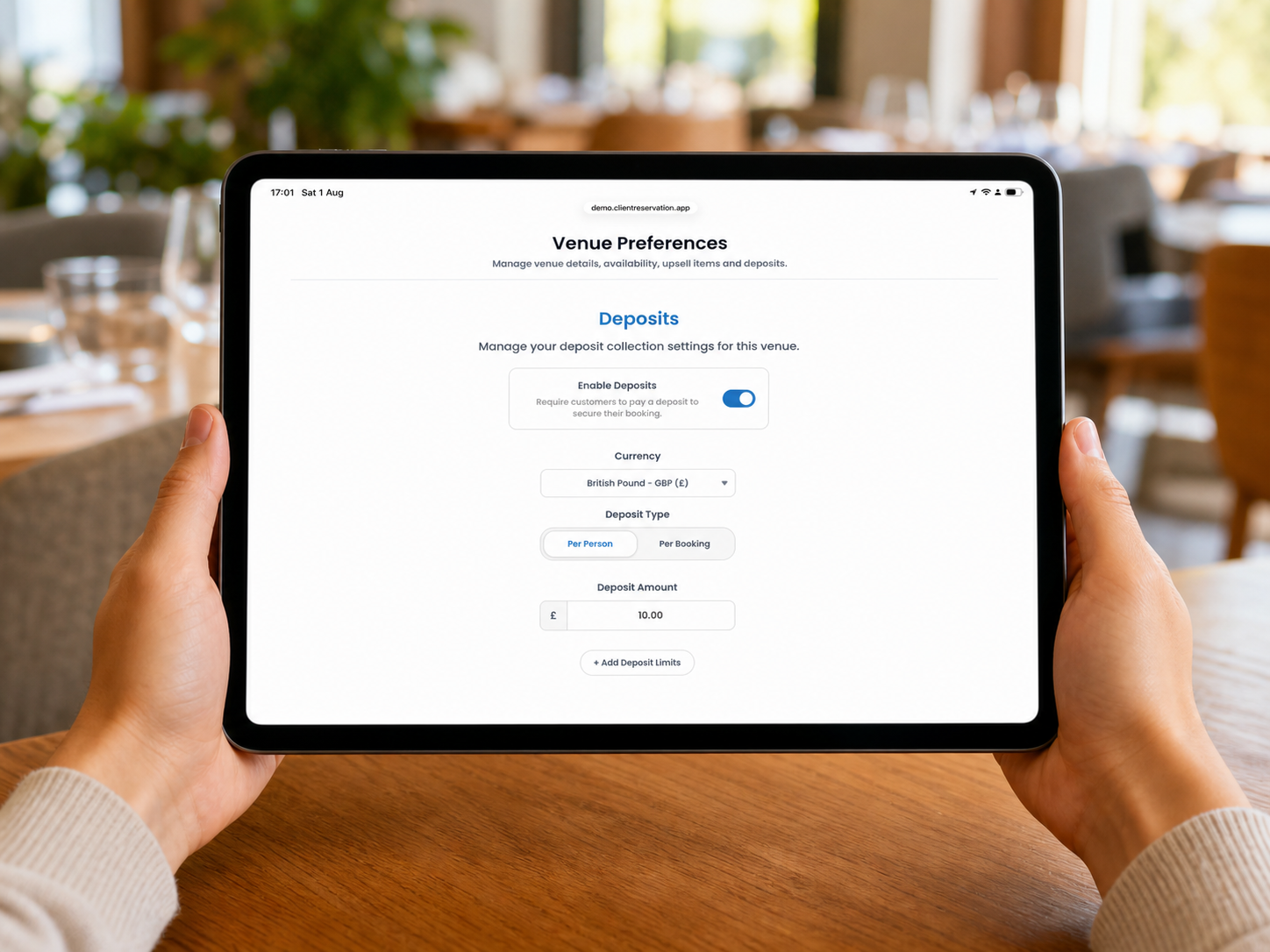
Venue Preferences allows you to require customers to pay a deposit when making a booking. You can charge a fixed amount for the whole booking or calculate the deposit from the number of people attending.
Deposit settings are saved automatically. They are configured for each venue unless a beach and restaurant venue are linked.
1. Before enabling deposits
Client Reservation uses Stripe to collect deposit payments.
- From the Home screen, open Settings.
- Scroll to Payments.
- Complete the Stripe setup and ensure payments are enabled.
If Stripe has not been fully configured, the Deposits page displays an Action Required warning. Select Configure Now to open the payment settings.
2. Open the venue’s deposit settings
- From the Home screen, select Venue Preferences.
- Check the venue name and type displayed at the top-right.
- Select the preferences menu at the top-left.
- Select Deposits.
3. Change the selected venue
- Select the current venue at the top-right.
- Find the venue you want to configure in the Choose a venue menu.
- Select Beach or Restaurant beneath the venue name.
- Confirm that the correct venue name and type appear in the selector.
- The deposit settings saved for that venue will load automatically.
Only active venues that you have permission to edit are displayed.
4. Turn deposit collection on
- Open Venue Preferences > Deposits for the required venue.
- Turn on Enable Deposits.
- The currency, deposit type and amount settings will appear.
- Configure the required deposit using the instructions below.
When enabled, customers must pay the calculated deposit to secure their booking. To stop requesting deposits, turn Enable Deposits off. The existing configuration remains stored, but deposits will not be collected until you turn the setting on again.
5. Choose the deposit currency
- Open the Currency menu.
- Choose the currency your business uses from the list of supported currencies.
- Check that the correct currency symbol appears beside the deposit amount and any optional limits.
The selected currency is also used for the venue’s upsell items. For linked beach and restaurant venues, the currency is shared between both locations.
6. Choose the deposit type
Select either Per Person or Per Booking.
Per Person
The deposit amount is multiplied by the number of people included in the booking. For example, with a deposit amount of £10:
- A booking for two people requires £20.
- A booking for four people requires £40.
- A booking for six people requires £60.
Use Per Person when the required deposit should increase with the size of the group. Optional minimum and maximum deposit limits are available with this option.
Per Booking
The customer pays one fixed amount for the entire booking, regardless of the number of people attending. For example, if the deposit amount is £25:
- A booking for two people requires £25.
- A booking for six people also requires £25.
Use Per Booking when every reservation should require the same flat deposit.
Minimum and maximum limits are not used with a fixed per-booking deposit. Switching to Per Booking hides the limits section and removes any previously saved minimum and maximum values.
7. Enter the deposit amount
- Select the required deposit type.
- Find Deposit Amount.
- Enter the amount without typing a currency symbol.
- Select outside the field when finished.
- Check that the value is displayed in the correct currency format.
For Per Person, this is the amount charged for each guest before any minimum or maximum limit is applied. For Per Booking, this is the complete deposit charged for the reservation.
8. Add an optional minimum deposit
A minimum deposit ensures that smaller groups still pay enough to cover your basic costs. This option is only available for Per Person deposits.
- Select Per Person as the deposit type.
- Select + Add Deposit Limits.
- Enter an amount under Minimum Deposit.
- Select outside the field to format and save it.
For example, if the deposit is £10 per person with a £30 minimum:
- One person would normally produce a £10 deposit, but the customer pays £30.
- Two people would normally produce £20, but the customer pays £30.
- Four people produce £40, so the customer pays £40.
You can leave the Minimum Deposit field empty if you do not require a minimum.
9. Add an optional maximum deposit
A maximum deposit prevents the total from becoming too high for larger groups. This option is only available for Per Person deposits.
- Select Per Person.
- Select + Add Deposit Limits if the fields are not already visible.
- Enter an amount under Maximum Deposit.
- Select outside the field to format and save it.
For example, if the deposit is £10 per person with a £50 maximum:
- Four people produce a £40 deposit.
- Five people produce a £50 deposit.
- Eight people would normally produce £80, but the customer pays no more than £50.
You can use a minimum, a maximum, both limits or neither. If the minimum is entered above the maximum, the system automatically adjusts the other value so the two limits do not conflict.
10. Remove the deposit limits
- Open the venue’s Deposits settings.
- Select Remove Limits.
- Both the minimum and maximum values will be cleared.
The standard per-person calculation will then apply without a minimum or maximum cap.
11. Deposits for linked venues
When a beach venue and restaurant venue are linked, their deposit settings are shared. The Deposits page displays a message confirming this.
Changes to the following settings are automatically applied to both linked venues:
- Whether deposits are enabled.
- Currency.
- Per-person or per-booking calculation.
- Deposit amount.
- Minimum deposit.
- Maximum deposit.
If a customer makes a combined booking containing both linked beach and restaurant reservations, they are charged one deposit, not a separate deposit for each part. Where the calculated amounts differ, the system uses the higher applicable deposit instead of adding both amounts together. For example, if the beach portion calculates £30 and the restaurant portion calculates £40, the customer is charged £40—not £70.
12. Before leaving the page
Confirm that:
- Stripe setup is complete.
- The correct venue is selected.
- Enable Deposits is turned on.
- The correct currency is selected.
- The deposit is set to Per Person or Per Booking as intended.
- The deposit amount is correct.
- Any minimum or maximum limits produce sensible totals for both small and large groups.
- Linked venues display the shared-settings notice where expected.
There is no separate Save button. Changes are saved automatically as you make them.