


 All Articles
Getting Started: Understanding the Admin Home Screen
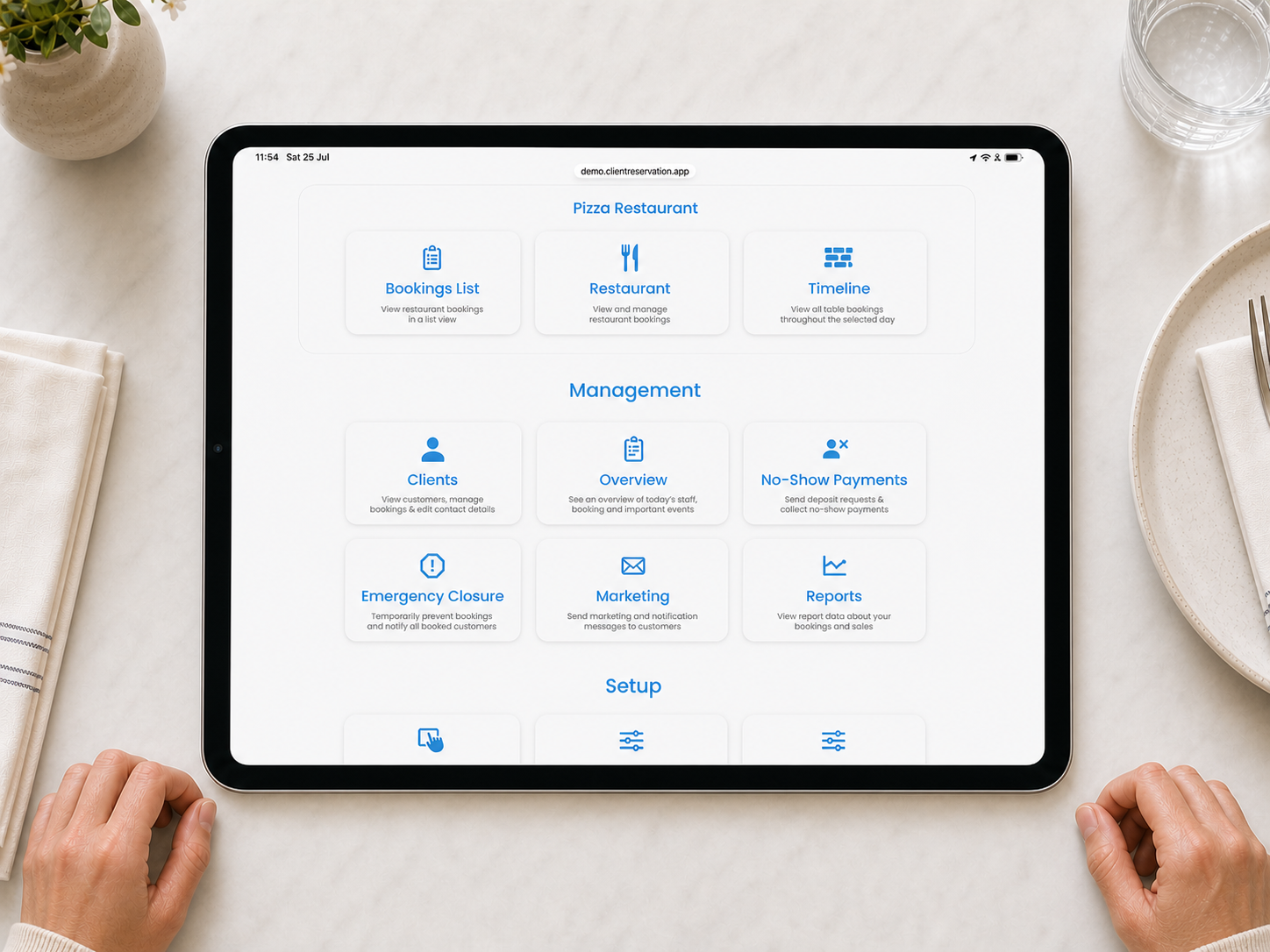
The Home screen is the main menu for Client Reservation. From here, you can access bookings for each venue, manage customers, review reports, update your venue setup and change system settings.
The options displayed may vary depending on your venue types and staff access level.
Search
Select the magnifying-glass icon at the top of the screen to quickly find a feature or setting.
Enter a term such as “deposits”, “opening times” or “booking link”, then select a result to go directly to the relevant page. Search results include both Home screen options and commonly used settings.
Reservations
The Reservations section contains the booking views available for each of your venues. If your business has multiple venues, each one is shown separately.
Depending on the venue type, you may see:
- Bookings List: View and manage the venue’s bookings in a list.
- Beach: View and manage beach-bed or mattress bookings on the venue layout.
- Restaurant: View and manage table bookings on the restaurant layout.
- Timeline: View restaurant bookings across the selected day in chronological order.
Venues containing linked beach and restaurant areas may show all applicable booking views together.
Management
This section provides tools for managing the day-to-day operation of your business.
- Clients: View customer records, contact details and previous or upcoming bookings.
- Overview: See a summary of today’s staff, bookings and important events.
- No-Show Payments: Send deposit requests and collect payments relating to no-shows.
- Emergency Closure: Temporarily prevent new bookings and notify customers whose bookings are affected.
- Marketing: Send marketing or notification messages to your customers.
- Reports: Review information about your bookings and sales.
Setup
Use the Setup section to control how your venues and the wider system operate.
- Layout Designer: Edit the position and arrangement of restaurant tables, beach beds or mattresses.
- Venue Preferences: Manage settings for individual venues, including venue details, online booking, opening dates and times, sittings, deposits and booking terms.
- Settings: Change business-wide settings such as branding, contact information, payment setup and booking-view preferences.
- Staff Accounts: Create and manage staff accounts and control their access levels.
- Support: View your existing support tickets or contact the Client Reservation support team.
Account information
At the bottom of the Home screen, you will find:
- Sign Out: Securely signs you out of Client Reservation.
- Version information: Identifies the version of the application currently in use.
- Business ID: A unique reference for your business. Select the ID to copy it when requested by the support team.
Notifications and action required
Important account notices appear below the Welcome heading.
These may include:
- A request to complete your Stripe setup before collecting deposits.
- A warning that one or more venues are approaching their expiry date.
Use the button shown in the notice to resolve the issue or contact support.