


 All Articles
How to Send an Email and Understand Its Analytics
Once you have designed your marketing email, you can send a test copy, select your audience and send the finished campaign. After sending, the campaign’s analytics show how customers interacted with it.
1. Send a test email
Sending a test allows you to check the content, links and appearance before contacting customers.
- From the Home screen, select Marketing.
- Open the draft campaign you want to send.
- Select Preview and review the complete email.
- Select Send in the top-right corner.
- Choose Test Send.
- Check or edit the email subject.
- Enter the email address that should receive the test.
- Select Send Test Email.
- Open the test email and check:
- The subject and written content.
- Images and branding.
- Button labels and destinations.
- The layout on both desktop and mobile devices.
A test email is sent only to the address you enter and is not sent to your customer audience.
2. Send the campaign to customers
- Return to the campaign after completing your checks.
- Select Send, then choose Send from the menu.
- Review the Email Subject. This is what customers see in their inbox and must not be blank.
- Under Customer Type, select All, VIP Only or No VIPs.
- If required, choose one or more customer tags to target a more specific audience.
- With multiple tags, choose whether customers should match ANY or ALL selected tags.
- Check the recipients selected total. Only eligible customers who have opted in to marketing are included.
- Select Send to [number] people.
- On the Ready to send? screen, check the recipient count, audience and tag filter one final time.
- Select Confirm & Send.
Once sent, a campaign is marked as Sent and cannot be edited. To reuse its content, duplicate the campaign and edit the new copy.
3. View a campaign’s analytics
- From the Home screen, select Marketing.
- Select the Sent filter to display completed campaigns.
- Open the campaign you want to review.
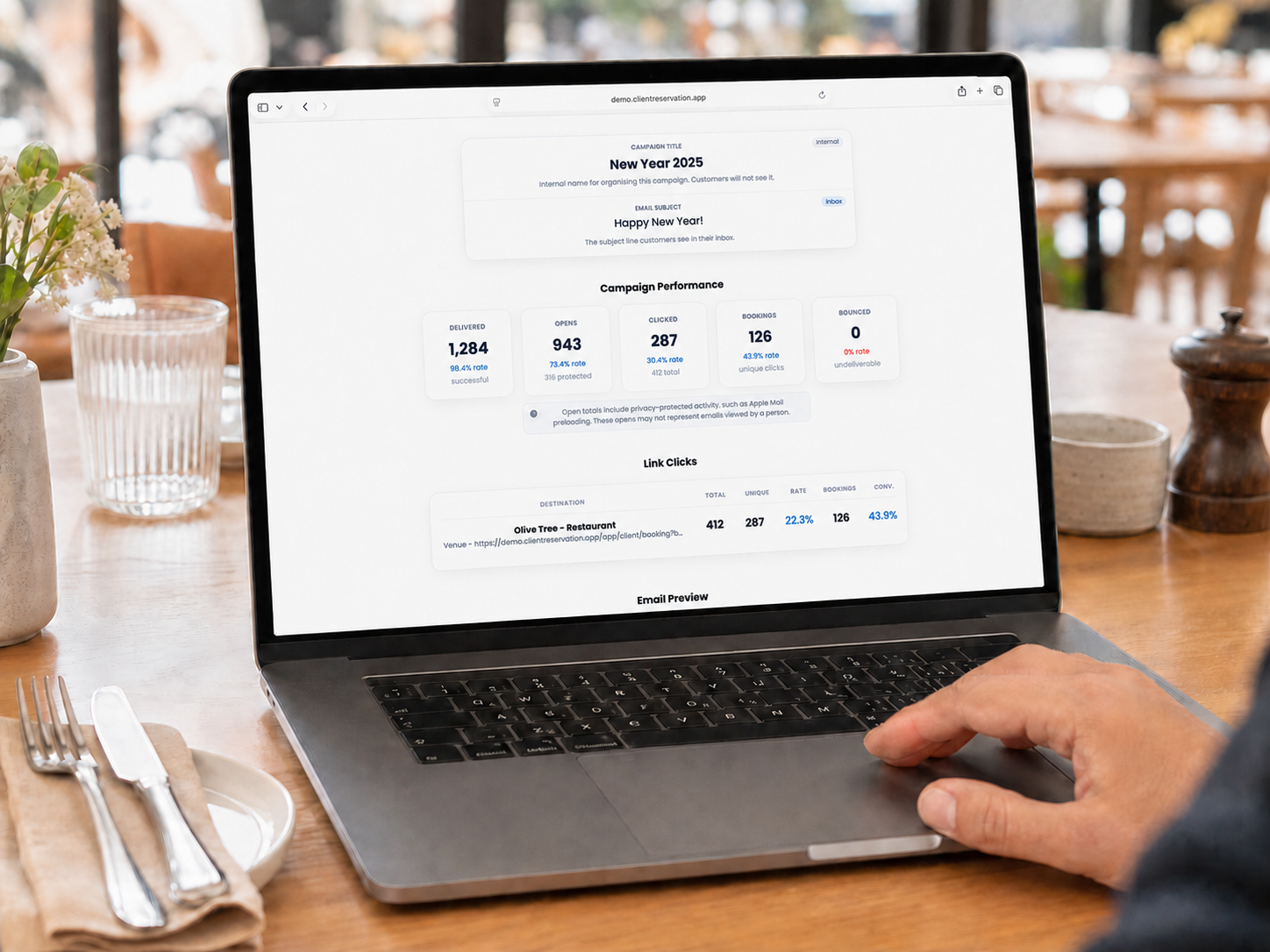
- Scroll to Campaign Performance to view the latest results.
Analytics may initially show low or zero figures. They update as emails are delivered and customers interact with the campaign.
4. Understand campaign performance
Delivered
The number of emails successfully delivered. The delivery rate compares successful deliveries with the total number of delivered and bounced emails.
Opens
The number of recipients recorded as opening the email. The open rate is calculated against delivered emails.
Open totals can include privacy-protected activity, such as Apple Mail automatically preloading an email. The protected figure identifies this activity, which may not represent an email viewed by a person.
Clicked
The number of individual recipients who clicked a tracked button link. The smaller total includes every recorded click, so it may be higher when the same customer clicks more than once. The click rate compares unique clicks with recorded opens.
Bookings
The number of bookings attributed to customers clicking a tracked campaign link. The booking conversion rate compares attributed bookings with unique clicks.
Bounced
The number of emails that could not be delivered, for example because an address is incorrect, unavailable or rejected by the recipient’s email provider.
A high bounce rate may indicate that customer email details need to be reviewed.
5. Understand Link Clicks
The Link Clicks section provides separate results for each tracked button:
- Destination: The button label, destination type and link.
- Total: Every click recorded for that button.
- Unique: The number of different recipients who clicked it.
- Rate: Unique clicks as a percentage of delivered emails.
- Bookings: Bookings attributed to that link.
- Conv.: Bookings as a percentage of its unique clicks.
Use these results to identify which messages, offers and booking links attracted the most interest.
If the email did not contain tracked button links, the Link Clicks section explains that no link results are available.