


 All Articles
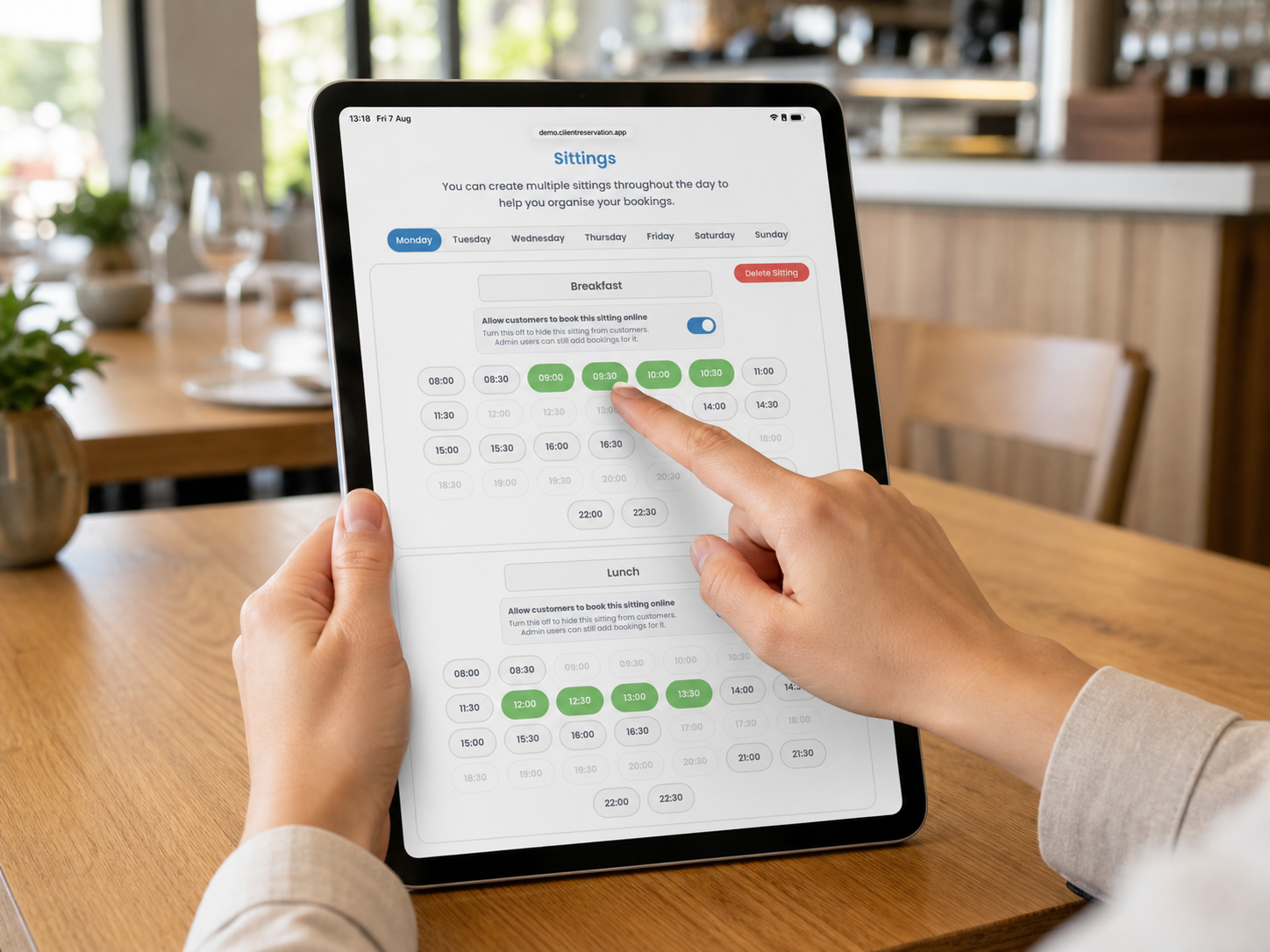
How to Set and Edit Restaurant Sitting Times
Sittings organise a restaurant’s available booking times into named service periods, such as Lunch, Early Dinner or Late Dinner.
Sittings are configured separately for each restaurant and each day of the week. Changes are saved automatically.
1. Before setting up sittings
The times available for sittings come from the restaurant’s Opening Times.
If a time is missing from the Sittings page:
- Open the preferences menu at the top-left.
- Select Opening Times.
- Select the required weekday.
- Turn on the missing time so it is highlighted green.
- Return to Sittings and select the same weekday.
Sittings are only required for restaurant bookings. Beach bookings cover the full day and do not use sittings.
2. Open the Sittings settings
- From the Home screen, select Venue Preferences.
- Check that the correct restaurant is displayed at the top-right.
- Open the preferences menu at the top-left.
- Select Sittings.
- The page will open with Monday selected.
3. Change the selected restaurant
- Select the current venue at the top-right.
- Find the required restaurant under Choose a venue.
- Select its restaurant option.
- Confirm that the correct venue appears in the selector.
- The sittings saved for that restaurant will load automatically.
Only active restaurants that you have permission to edit are displayed.
4. Select the day to edit
- Choose Monday, Tuesday, Wednesday, Thursday, Friday, Saturday or Sunday.
- The sittings configured for that day will appear.
- Check that the correct day is highlighted before making changes.
Each weekday has its own sittings. Editing Monday does not automatically change Tuesday or any other day.
5. Create a new sitting
- Select the required weekday.
- Select + Add Sitting.
- A new sitting will appear with a default name such as Sitting 1 or Sitting 2.
- Select the name field and enter a suitable name, such as Lunch or Dinner.
- Select outside the name field to save it.
New sittings are enabled for customer online booking by default.
6. Add times to a sitting
- Find the sitting you want to configure.
- Review the time buttons displayed inside it.
- Select a time to add it to the sitting.
- The selected time will turn green.
- Continue selecting times until the sitting contains all the required booking start times.
For example, an Early Dinner sitting could contain 17:00, 17:30, 18:00 and 18:30.
Each selected time is saved automatically.
7. Remove a time from a sitting
- Select the correct weekday.
- Find the sitting containing the time.
- Select the green time you want to remove.
- The green highlight will disappear.
- The time will remain part of the restaurant’s Opening Times, but it will no longer belong to that sitting.
Removing a time from a sitting does not close that booking time. To make it completely unavailable, also turn it off under Opening Times.
8. Move a time to another sitting
A time can only belong to one sitting on the same weekday.
- Find the sitting currently containing the time.
- Select the green time to remove it.
- Find the sitting to which you want to move it.
- Select the same time in the new sitting.
- Confirm that it is now highlighted green in the correct sitting.
Times already assigned elsewhere appear faded in other sittings. Selecting a faded time displays a Time Unavailable message.
9. Rename a sitting
- Select the required weekday.
- Find the sitting you want to rename.
- Select its name field.
- Enter the new name.
- Select outside the field to save it.
Use clear names because the sitting may be shown to customers during online booking.
10. Show or hide a sitting online
Each sitting has an Allow customers to book this sitting online switch.
- Select the required weekday.
- Find the sitting you want to change.
- Turn the switch on to make the sitting available through online booking.
- Turn the switch off to hide it from customers.
- When disabled, the sitting displays an Online booking turned off notice.
Turning online booking off does not delete the sitting or remove its times. Admin users can still add bookings to it. This setting applies only to that sitting on the selected weekday, so check it separately for every sitting and day.
11. Delete a sitting
- Select the weekday containing the sitting.
- Select Delete Sitting.
- Review the confirmation warning.
- Select Delete to continue or Cancel to keep it.
Deleting a sitting cannot be undone. However, it does not remove the restaurant’s Opening Times. Its former times can be assigned to another sitting.
12. Before leaving the page
Confirm that:
- The correct restaurant is selected.
- You have configured each required weekday.
- Every sitting has a clear name.
- Each booking time belongs to the correct sitting.
- No required opening time has been left unassigned.
- Online booking is enabled or disabled correctly for each sitting.
There is no separate Save button. Sitting names, assigned times and online-booking settings are saved automatically.