


 All Articles
How to View and Move Bookings on the Timeline
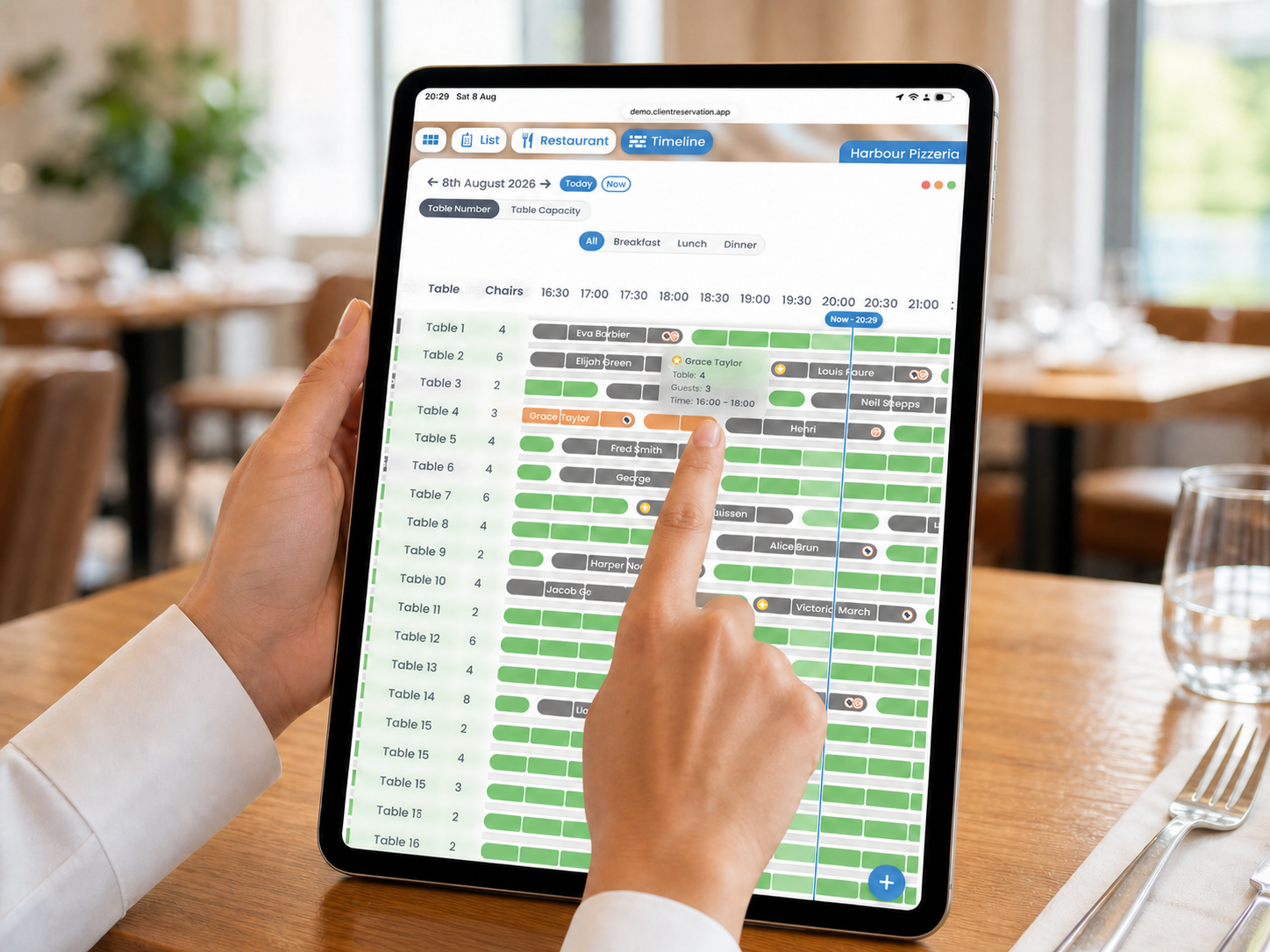
The Timeline allows you to open a booking’s details or quickly change its time and assigned table using drag and drop.
1. View a booking’s details
- From the Home screen, select Timeline.
- Check that the correct venue and date are selected.
- Find the booking. Each booking appears as a coloured block across its assigned table and time.
- Tap or click the booking once.
- The restaurant booking view opens with the selected reservation’s details.
You can review the customer, party size, booking time, assigned table, notes and other reservation information. Use the back button to return to the Timeline.
2. Move a booking using drag and drop
- Find the booking you want to move.
- Press and hold the booking block briefly until the floating booking summary appears.
- Continue holding and drag the booking:
- Left or right to change its time.
- Up or down to assign it to another table.
- Diagonally to change both the table and time.
- Move the booking over the required table and time. The Timeline highlights the blocks used at the new position.
- Check that the complete highlighted area is suitable.
- Release the booking to complete the move.
- Wait for the Timeline to refresh and confirm the booking appears in its new position.
The booking’s start time, end time, duration and assigned table are updated automatically.
3. Booking duration and availability
The system attempts to keep the booking’s existing duration when it is moved. Occupied time slots are excluded from the available drop area.
If the complete duration does not fit before another booking or the end of the available period, the system warns that the duration will change. Review the original and proposed durations, then select:
- Continue With Move to accept the new duration.
- Cancel Move to leave the booking unchanged.
You cannot drop a booking outside a valid Timeline position or on top of time already occupied by another booking.
4. Table capacity warnings
When moving a booking to another table, the system compares the party size with the number of chairs assigned to that table.
If the guest number does not match the table’s chair capacity, a Booking Changes warning appears. Review the details and select:
- Continue With Move to use the selected table.
- Cancel Move to leave the booking in its original position.
Always make sure the new table is appropriate for the number of guests before continuing.
5. Locked bookings and blocked tables
A locked booking cannot be changed using drag and drop. Unlock the booking before attempting to move it.
A blocked table entry also cannot be moved as a normal booking. The table must be unblocked before a reservation can be added or changes can be made.
6. Drag-and-drop tips
- Use a quick tap or click to view the booking.
- Press and hold to move it.
- Start dragging from any part of the booking block.
- Keep holding until the correct destination is highlighted.
- If you release outside a valid area, the booking will not be moved.